
LMS User Identities and Conflicts
When a learner or instructor launches from an LMS, NETLAB+ has to decide which NETLAB+ account they are. It does so with LMS identities: for each account, one record per LTI version that ties the identifier the LMS sends for that person to the account. This page explains how identities are created, what a conflict is, and how an instructor or administrator resolves one.
How a Launch Finds an Account
Every LTI launch carries an identifier for the person launching, assigned by the LMS, together with their name and email address. On each launch NETLAB+ looks for an identity that matches the identifier under that LTI version:
A match is found. The launch signs in to that account.
No match, but an account in the community has the same email address. The launch binds the identifier to that account and signs in. For an instructor or administrator account this binding is not made automatically; see Approval for privileged accounts.
No match and no account. NETLAB+ creates a student account for the person, binds the identifier to it, and signs in.
The identifier an LMS sends for a person can change. The common cases are a migration of the LMS itself, a person being re-created in the LMS, and the move from LTI 1.1 to LTI 1.3: Canvas, for example, sends a different identifier for the same person under 1.3, so every existing user’s first 1.3 launch arrives with an identifier NETLAB+ has never seen. Because identities are tracked per version, that first 1.3 launch finds the account by email address and binds the new identifier without disturbing the 1.1 one.
Conflicts
A conflict arises when a launch arrives with a new identifier for an account that already holds an identity under the same LTI version. Only one identifier can hold the slot. NETLAB+ knows which identifier arrived first and what each launch asserted, but it does not know which person is entitled to the account, so it records the newcomer as Awaiting Decision and leaves the choice to a person.
What happens to the account in the meantime depends on how the existing identity reached it:
The existing identity reached the account on a matching email address alone. It may not belong to the person who holds the account. Launches under that version are refused for both identifiers until someone decides, and the account’s password is reset.
The existing identity did not rely on email alone. NETLAB+ created the account for it, or a person approved it. Nothing about the account changes: it continues to work, its password stands, and only the new identifier is refused until someone decides.
Only student accounts can be bound automatically. A student launch can therefore never lock an instructor or administrator out of their account.
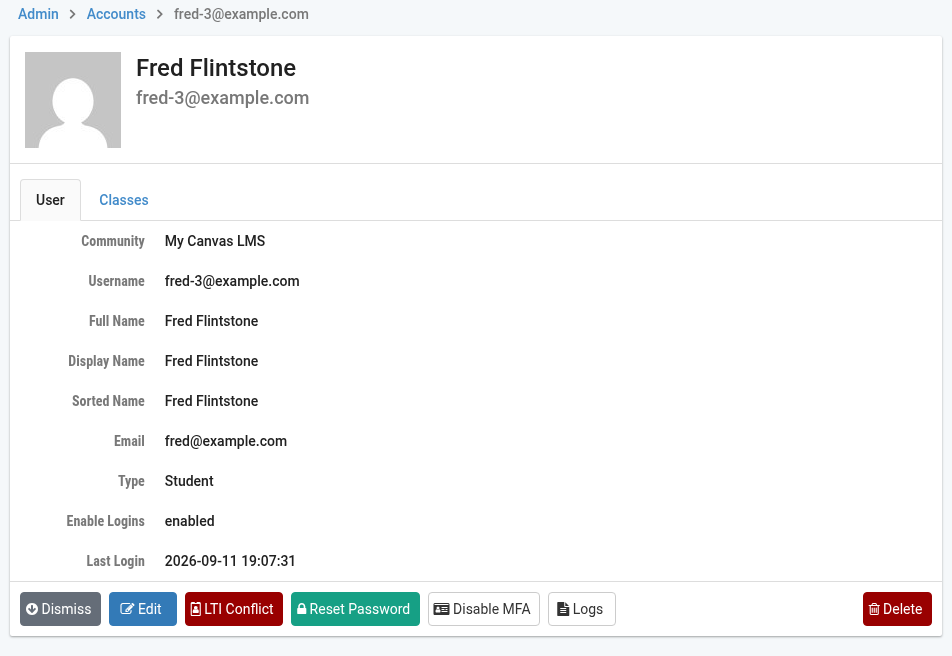
The account’s page shows an LTI Conflict button while a
decision is waiting, and an LTI Identities button otherwise.
Resolving a Conflict
An instructor can resolve conflicts on the accounts of students in classes they lead; an administrator can resolve any. The subject of the identity never decides their own case.
Warning
The name and email shown for each identity are claims made by each launch, not proof. Names change legitimately, and a matching email address is the very thing in dispute. Confirm out of band which person is entitled to the account before choosing.
Login to NETLAB+ as the administrator, or as an instructor who leads the student’s class.
Open the account. As the administrator, click >
Accounts, find the user, and click their row. As an instructor, open
the class roster and select the student.
Click LTI Conflict. The LMS Associations
page opens, with one section per LTI version that has identities.
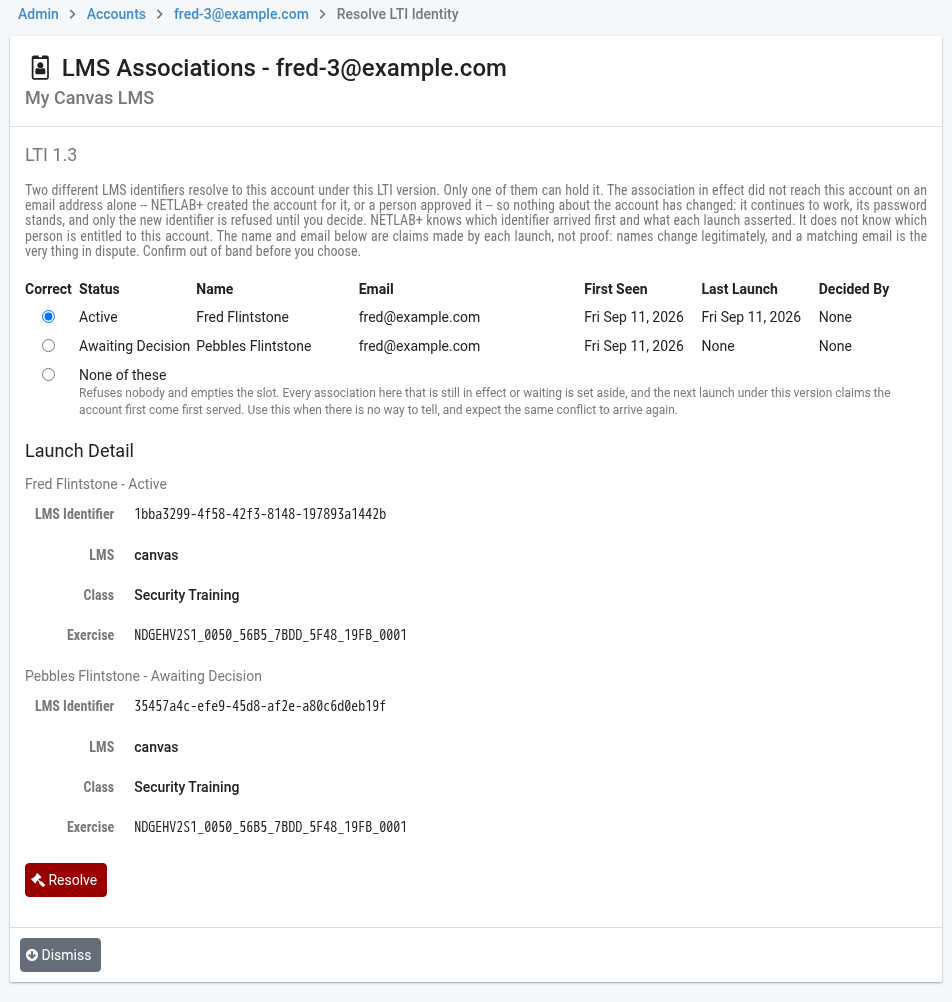
Read the explanation at the top of the section; it says which of the
two situations above applies. Compare the identities listed, and expand
Launch Detail to see the LMS identifier, LMS, class and exercise
each one launched with.
In the Correct column, select the identity that belongs to
the person who holds the account, or None of these, and click
Resolve. Confirm in the dialog, which lists what will be in
effect and what will be denied.
Field Descriptions
- Correct:
The choice. The selected identity becomes the one in effect; every other identity listed is denied.
- Status:
Active, the identity in effect; Awaiting Decision, an identity waiting to be approved or denied; Denied, an identifier refused on sight; Revoked, a formerly active identity set aside by a later decision.
- Name and Email:
What the launch asserted about the person. Claims, not proof.
- First Seen and Last Launch:
When the identifier was first recorded and when it last launched successfully.
- Decided By:
The person who made the decision that put this identity in its current state, or None when it was bound automatically.
- None of these:
Refuses nobody and empties the slot. Every identity that is in effect or waiting is set aside, and the next launch under this version claims the account first come first served. Use it when there is no way to tell, and expect the same conflict to arrive again.
Note
A denied identifier is refused on sight and cannot claim the account by launching again. It stays listed, and someone with authority over the account can reverse the denial later by choosing it on this page. That is also how a decision made in error is corrected.
Approval for Privileged Accounts
When a launch arrives whose identifier is unknown and whose email address matches an instructor or administrator account, NETLAB+ does not bind it automatically. The identity is recorded as Awaiting Decision, nothing about the account changes, and the page shows: “An LMS identifier is asking to use this account and nothing currently holds it.”
Open the account and click LTI Conflict.
Approve the identity only if you can confirm out of band that the
identifier belongs to the person who holds the account, then click
Resolve.
Until it is approved, launches with that identifier are refused. The person can still sign in to NETLAB+ directly with their password.
Reviewing Settled Identities
An account with no conflict waiting shows an LTI Identities
button. The same page opens, and the section for each version begins “Nothing is
waiting on a decision for this LTI version.” The identity in effect is marked
Active and the rest is the record of how it got there.
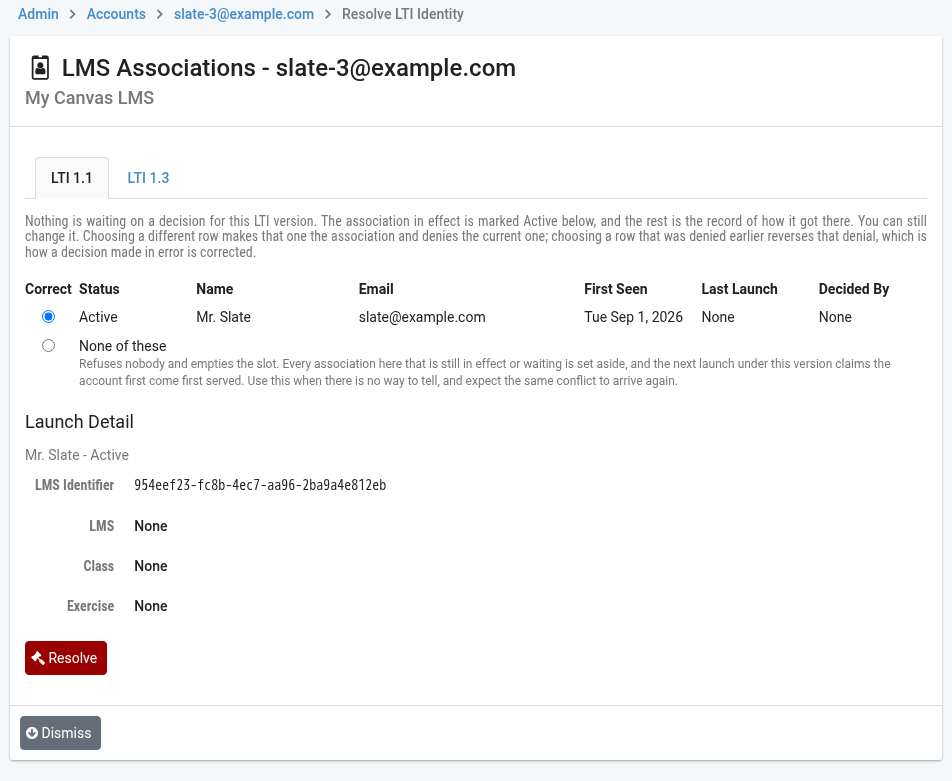
The identity in effect can still be changed here: choosing a different row makes that one the association and denies the current one.