
Exporting a Class Cartridge
Lab links reach an LMS course through a Common Cartridge: a file exported from a NETLAB+ class and imported into the LMS course. The cartridge contains one LTI link for each lab exercise in the class’s content, each already carrying the community, class and exercise it launches. Importing it is what places the labs in the course; NETLAB+ itself declares no placements to the LMS.
The cartridge is the same for LTI 1.1 and LTI 1.3. The LMS matches each link to whichever NETLAB+ tool is installed in it, so a class exported for a 1.1 integration does not have to be exported again when the LMS moves to 1.3.
Exporting the Cartridge
Instructors export the cartridge from the class’s page. An administrator can do the same from the class manager.
Login to NETLAB+ as an instructor who leads the class, or as the administrator.
Open the class. As an instructor, select the class from
; as the administrator, click > Classes, choose the
community, and click the class’s row.
Click Export LTI Cartridge.
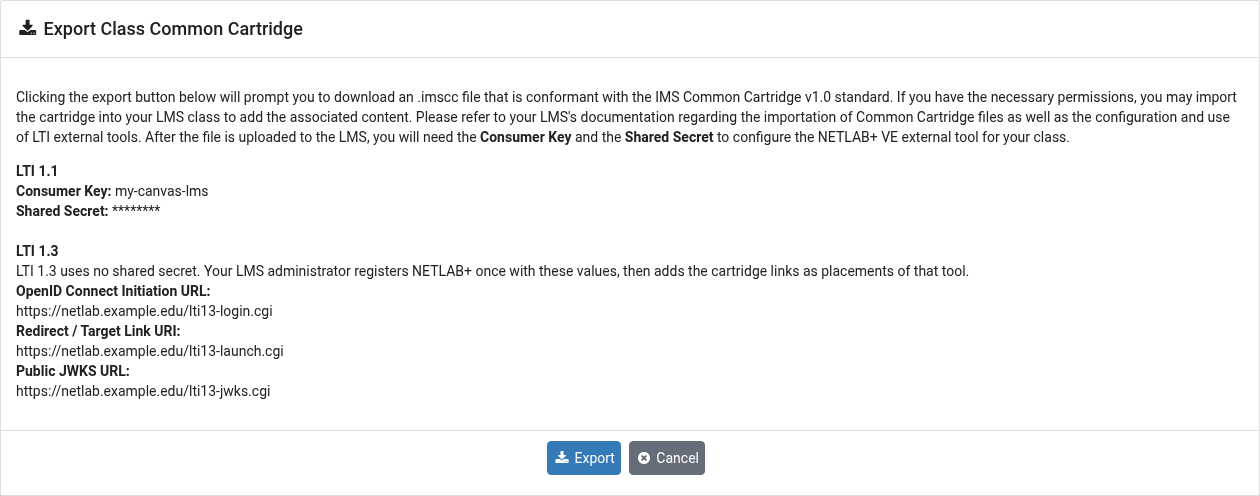
The dialog describes the file and, when the community’s
LTI Keys Visible to Instructors setting is enabled, shows the
values needed to configure the NETLAB+ tool in the LMS: the LTI 1.1 Consumer Key
and Shared Secret, and, when the community is pointed at an LTI 1.3 platform,
the LTI 1.3 registration values (the OpenID Connect initiation URL, the redirect
and target link URI, and the public JWKS URL). When the setting is disabled, the
dialog asks the instructor to request these values from the NETLAB+
administrator.
Click Export. The browser downloads an .imscc
file conforming to IMS Common Cartridge 1.0.
Note
The Export LTI Cartridge button is disabled when
LTI Integration is not enabled on the class’s community.
Importing the Cartridge into the LMS
In the LMS course, import the .imscc file using the LMS’s course
import or content import feature. Refer to the LMS documentation for importing
Common Cartridge files.
Confirm that the NETLAB+ external tool is configured in the LMS at a level that covers the course: for LTI 1.1 with the community’s Consumer Key and Shared Secret (LTI 1.1 Keys); for LTI 1.3 as the registered tool, installed and available (Registering an LTI 1.3 Platform).
Each imported item is an LTI link. When a learner follows one, the LMS launches NETLAB+, which signs the learner in, adds them to the class if they are not yet on its roster, and opens the exercise.
Tip
To have NETLAB+ return a grade for a lab, place the link as a graded assignment in the LMS rather than as a plain module item. See Grade Passback.
Note
If the class’s content changes, for example when exercises are added, export the cartridge again and import the new file. Existing links keep working.