
Binding a Community to a Platform
A platform registration by itself serves no launches. Each community that will accept LTI 1.3 launches from an LMS is pointed at that LMS’s platform from the community’s own settings, and can optionally be narrowed to a single deployment ID of that platform. This page covers both settings, and the LTI summary that each community’s page shows.
For LTI 1.1, a community needs no platform. It holds its own Consumer Key and Shared Secret instead; see LTI 1.1 Keys.
Enabling LTI on a Community
LTI is enabled per community. A community with LTI Integration disabled refuses launches under both versions, and its instructors cannot export a Common Cartridge.
Login to the NETLAB+ administrator account.
Click > Communities.
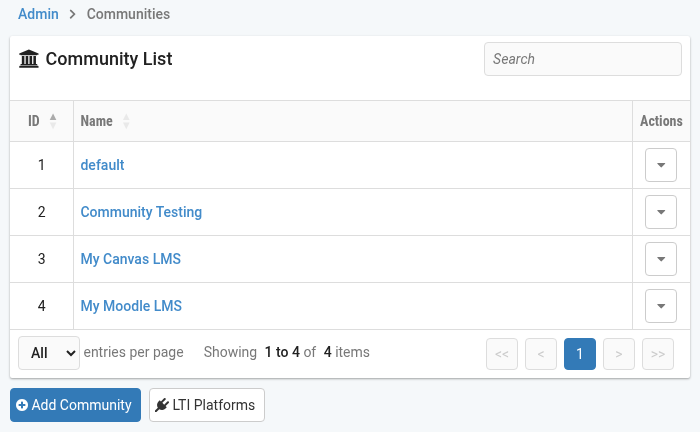
Click the community’s row, then click Edit.
Check LTI Integration. The LTI fields described below
appear once it is checked.
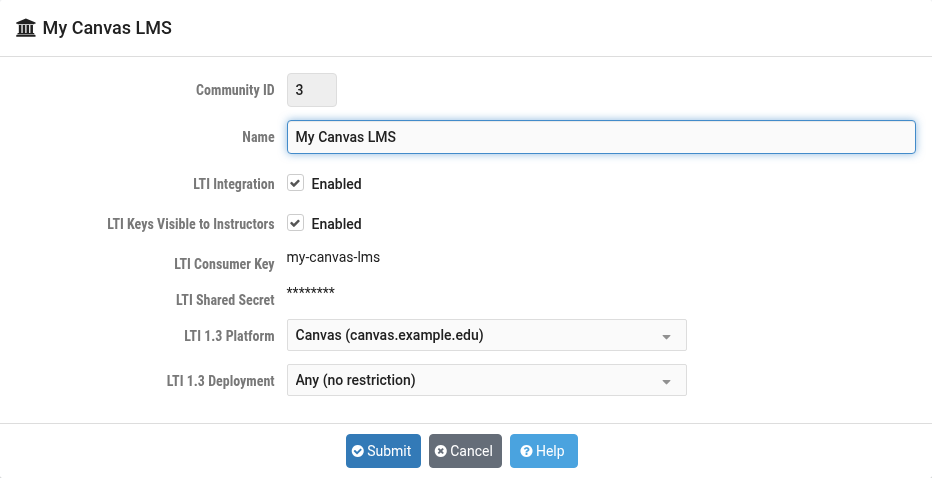
Field Descriptions
- LTI Integration:
Enables and disables the LTI features of this community for an LMS, under both versions.
- LTI Keys Visible to Instructors:
When enabled, instructors are shown this community’s Consumer Key and Shared Secret, and the LTI 1.3 registration values, when exporting a Common Cartridge for their class. When disabled, instructors are referred to the NETLAB+ administrator instead. See Exporting a Class Cartridge.
- LTI Consumer Key:
The LTI 1.1 key that identifies this community to an LMS. See LTI 1.1 Keys.
- LTI Shared Secret:
The LTI 1.1 secret that proves ownership of the Consumer Key. See LTI 1.1 Keys.
- LTI 1.3 Platform:
The platform registration this community launches from under LTI 1.3. Registrations are shared between communities and are managed on the
LTI Platformspage. Leave it set toNone (LTI 1.1 only)to keep the community on LTI 1.1. A platform that has been disabled is listed with “(disabled)” after its name.- LTI 1.3 Deployment:
Optionally narrows this community to a single one of the platform’s deployment IDs. Leave it set to
Any (no restriction)unless the LMS administrator installed NETLAB+ separately for this community. See Claiming a Deployment below.
Selecting the Platform
In the community’s edit form, set LTI 1.3 Platform to the
LMS’s registration and click Submit.
From that point, an LTI 1.3 launch from that LMS whose deployment ID is registered on the platform is accepted into this community. The community’s LTI 1.1 keys, if any, keep working alongside it, because the version belongs to each launch rather than to the community.
Note
Changing the platform releases any deployment claimed below, because a
deployment ID only means anything to the LMS that issued it. Setting the
platform back to None (LTI 1.1 only) clears the deployment as well.
Tip
Several communities may point at the same platform. Nothing else is needed for them to share one LMS; the community each launch belongs to is carried in the lab link itself, which the Common Cartridge writes. Claiming a deployment, below, is for the case where the LMS administrator installed the tool separately for each community and wants that separation enforced.
Claiming a Deployment
By default, any deployment ID registered on a platform may launch into any community that uses the platform. A community can instead claim one deployment ID. The rule is two-sided:
Only launches carrying that deployment ID are accepted into the community.
That deployment ID is accepted by no other community.
This restores, under LTI 1.3, the boundary that LTI 1.1 enforces with its per-community Shared Secret: a launch signed for one community cannot enter another.
Warning
Claim a deployment only when the LMS administrator installed NETLAB+ separately for this community; in Canvas, once per sub-account. An LMS issues one deployment ID for every course beneath the place the tool was installed, so a single installation serving several communities has nothing to tell them apart. Claiming its one deployment ID for one community stops the other communities launching at all.
Register the deployment ID on the platform first, if it is not already there. See Deployment IDs.
In the community’s edit form, set LTI 1.3 Platform to the
platform, then set LTI 1.3 Deployment to the deployment and click
Submit.
The deployment list shows each ID by its label, where one was given, followed by the value the LMS sends. A deployment that another community has already claimed is listed too, marked “in use by” that community, so that one already spoken for and one that has been deleted do not look the same. Choosing one that another community holds is refused, and the error names the community that holds it; change that community’s setting first if the claim should move.
Note
Reinstalling the tool in the LMS mints a new deployment ID. After a reinstall, register the new ID on the platform and claim it here before launches resume.
The Community’s LTI Summary
A community’s page shows its LTI state together, so that an administrator can tell at a glance what the community is configured for and what has actually launched into it.
Click > Communities and click the community’s row.
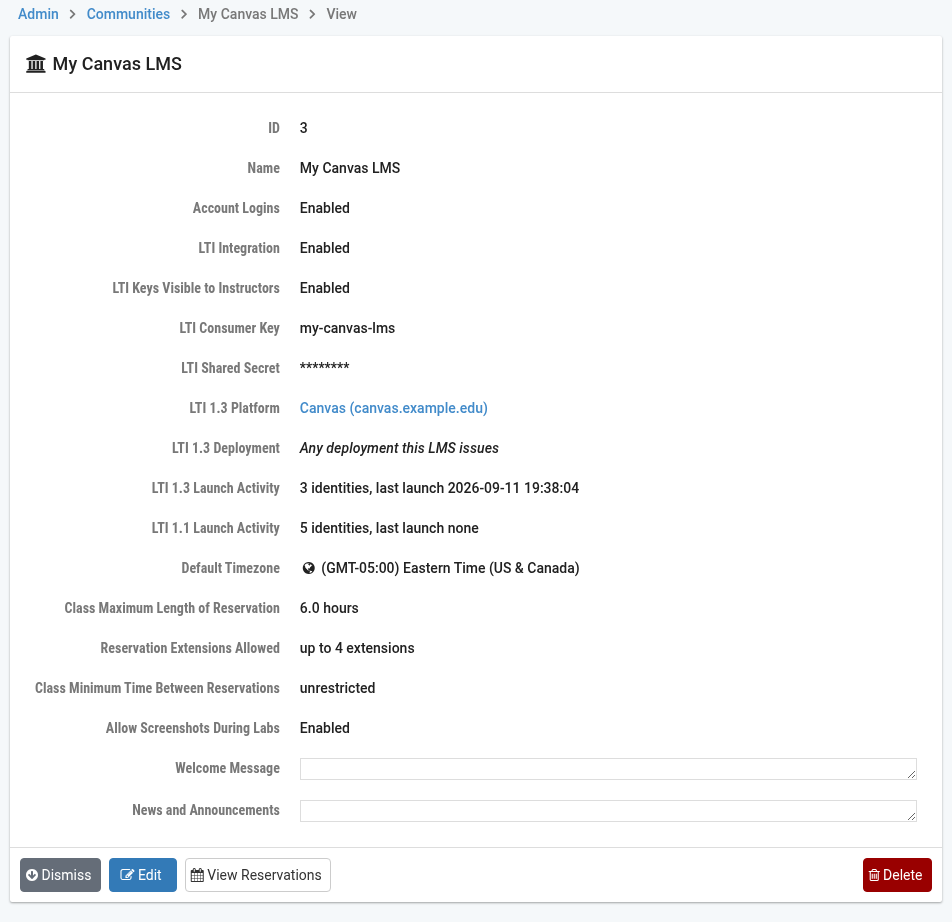
- LTI 1.3 Platform:
The platform the community is pointed at, linked to its page, or “(not configured)”.
- LTI 1.3 Deployment:
The deployment the community has claimed, or “Any deployment this LMS issues”. If the claimed deployment has since been removed from the platform, this says so in red; every launch into the community is refused until the setting is corrected.
- LTI 1.3 Launch Activity:
How many LMS user identities have launched into this community under LTI 1.3, and when the last launch was.
- LTI 1.1 Launch Activity:
The same for LTI 1.1.
A version with no activity is shown as a zero row rather than omitted. The activity rows answer the question nothing else on the page can: “I moved this community to 1.3, did it take?” A leftover LTI 1.1 tool at the course level in the LMS keeps launching successfully, so the migration can look finished when it is not. If the 1.3 count stays at zero while the 1.1 count keeps rising, the LMS course is still launching through the old tool; see Moving from LTI 1.1 to LTI 1.3.